
We all know what a pain reading is. It’s what we start our PhDs doing, and from that point on we never stop doing it. Keeping up-to-date with current research in our field is vital: you don’t want to be going down one route with your research, only to find that it’s already been done – what’s original about that? And who enjoys manually searching and trawling through pages and pages of PubMed results, wondering if you’ve actually already seen this paper or not?
The easiest way to keep abreast of what’s going on is to set up a PubMed alert. This will automatically email you the results of a pre-defined set of search terms at a time you find convenient so that you can go through them at your leisure, and each email will contain a new batch of papers (so you don’t have to wonder if you’ve already come across one before!). Setting this up is a lot easier than it may seem, and here’s a step-by-step guide to getting your literature searches off to a flying start.
Step 1: Sign up
As with most things these days, you have to register an account before you can get anywhere. On the PubMed home screen, click “Sign In” and then choose “Register for an Account”. Fill in all your details and then click “Register”.
Step 2: Carry out your ideal search
Make sure that you’re signed in to your account (your username should appear in the top right corner of the PubMed home screen). Now carry out a search for all the terms you think you’ll be interested in. This can be as long as you want (it may be worth asking your supervisor if they already have a list that you can copy and paste) and may contain BOOLEAN operators if you wish. PubMed will return a list of hits. Ignore the actual results for now, and click on “Save Search” (Figure 1).
Choose a free resource to help you move forward
CHECKLIST
Checklist For Writing a Scientific Review
CHECKLIST
Manuscript Summary Template and Checklist

Step 3: Saving Your Search
On the next screen, give your search a name (you can set up more than one regular search if you wish, so naming them something easily identifiable can be useful!) and click “Save” (Figure 2).

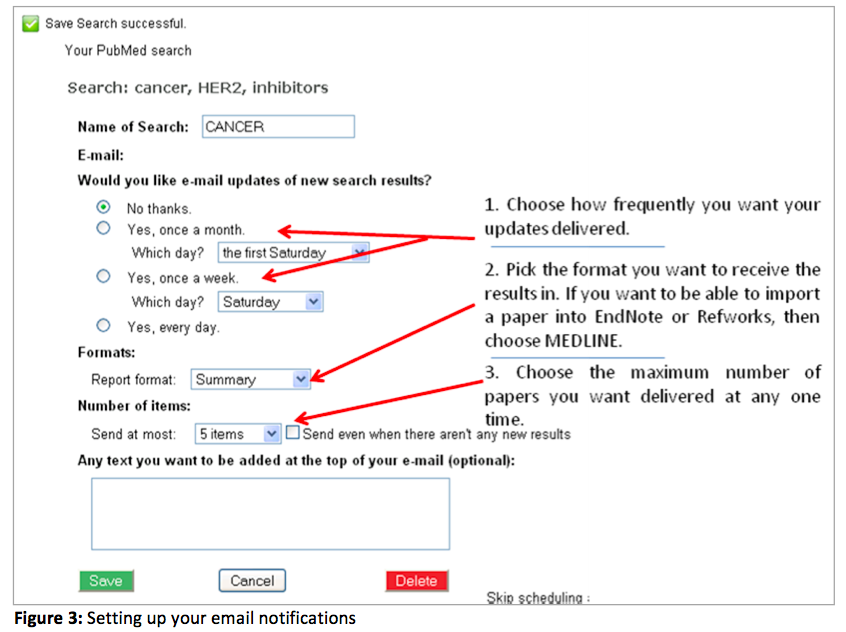
The next screen will provide you with a list of options for the delivery of your search results (Figure 3). Basically, all you need to do is fill the form in according to your preferences. There are three main areas:
- How frequently you want your search delivered: you can pick from once a month, once a week or every day.
- What format you want your search results in: you can choose from “Summary” (the title and authors names only – just like you’d get if you’d done a normal search on PubMed), “Abstract” (summary results with each article’s abstract) or “MEDLINE” – if you want to be able to import a reference into EndNote or Refworks, then choose this last one. Note that the “Summary” and “Abstract” options may have “(text)” after them – pick this if you don’t want to receive emails in HTML format.
- The maximum number of items you want delivered: you can choose from 5 up to 200, and there’s an option to have the email delivered to you even if no new results have turned up since your last search
Finally, click “Save” – and that’s it! Your search is set up and your results should be delivered to your email inbox, ready for you to peruse and pick the ones most relevant to you.
What tips do you have for using PubMed alerts?
For more tips on keeping track of the scientific literature, head over to the Bitesize Bio Managing the Scientific Literature Hub.
You made it to the end—nice work! If you’re the kind of scientist who likes figuring things out without wasting half a day on trial and error, you’ll love our newsletter. Get 3 quick reads a week, packed with hard-won lab wisdom. Join FREE here.


