
- Do you *really* know what you’re doing when you search for articles in PubMed?
- Are you familiar with Boolean operators?
- What does “MeSH” mean to you?
- Can you locate (and use) the Advanced Search Builder?
- Have you set up automatic updates with My NCBI?
- Do you know how PubMed relates to the other NCBI databases?
If you’re like me (before I wised up to the search power of PubMed), you probably just type in your topic of interest and press Go. And then you get back about 8 billion results, which – this is just a guess – is far more than you’re likely to read.
Here are a few basic tips to help you improve your searches on the new PubMed without wasting a lot of time slogging through pages of results, thus getting you back to the bench ASAP. Unless you’re avoiding the wet lab, not that I’ve ever used literature searches and background reading as an excuse to step away from the PCR machine, of course.
Improve Your PubMed Searches: Basic Searching
1. Boolean Operators
You probably already use them, but may not know their formal name. Boolean operators – AND, OR, NOT – are used to combine search terms, and in PubMed they must be in UPPERCASE.
- AND is used when you’re looking for articles that contain ALL of your search terms (narrows your search).
- OR is used when you’re looking for articles that contain AT LEAST ONE of your search terms (broadens your search; often used for synonyms).
- NOT is used when you want articles that EXCLUDE your search term.
Say you’re interested in articles about cell death in the postnatal olfactory bulb. Here are the results from a VERY simple search that is the likely starting point for most searchers. It may be a “good enough” search for you, but keep reading to discover ways to refine your results.
Choose a free resource to help you move forward
CHECKLIST
Checklist For Writing a Scientific Review
CHECKLIST
Manuscript Summary Template and Checklist
|
Search Terms |
# Articles |
Explanation |
| olfactory bulb AND cell death |
492 |
Basic starting search |
| olfactory bulb AND apoptosis |
341 |
Another term for cell death |
| olfactory bulb AND (cell death OR apoptosis) |
586 |
You want all possible articles on this topic |
| olfactory bulb AND (cell death OR apoptosis) NOT development | 402 | But you don’t want papers on prenatal development |
2. Truncation
Use * to replace one or more characters at the end of your search term. This can be very useful if you’re doing a broad search and will accept multiple forms of your search term, including plurals.
Example: devel* (retrieves develop, develops, development, developmental, developing, etc.). Note that if a term is truncated too much, you will get a warning about receiving only the first 600 variations, so you’ll need to lengthen the root word search to get meaningful results. Also, keep in mind that truncation restricts your search to keywords only.
3. Single Citation Matcher
PubMed has a handy tool if you’re trying to locate a specific reference: the single citation matcher. A very quick way to use it is to start entering the journal name (a menu of possible titles pops up), the publication year, and the last name of the first author (restricting choices to “only as first author”).
You can be more thorough with the information you enter, but this strategy usually results in only one entry, or at most just a few, and then you can locate the one you really want.
4. Article Type
Anytime you perform a search on PubMed, the default results page is for “All” results, no matter the type of article. If you’re only interested in a specific type of article, say review articles, you can narrow your search to this specific type. After performing a search, a left-hand navigation menu appears, which includes an ‘Article type’ menu. Underneath the menu title, you can select ‘Clinical trial’, ‘Review’ or ‘Systematic Review’, for example, to narrow your search to just those article types.
But wait, there’s more. You can further improve your PubMed searches using the ‘Additional filters’ option, which provides a far greater selection of different article types, including various stages of clinical trial. You can select multiple article types using this menu as well.
In the example described above, there were 22 review articles for “olfactory bulb AND (cell death OR apoptosis) NOT development”, so that might be a good place to start, especially if it’s a new topic for you.
A note about selecting article types. If you perform a subsequent search from the same page, the filters will still apply (e.g. if you had ‘reviews’ selected for your first search, the subsequent searches will be limited to reviews). So if your search is returning fewer articles than expected, check it isn’t still limited to specific article types.
NCBI Databases
PubMed is just one of many databases available from NCBI. These different databases can help improve your PubMed searches. We’ll touch on just one here, but we’d recommend you go and look at all the other available databases too.
5. MeSH Database
This one’s a biggie if you really want to improve your PubMed searches. MeSH stands for Medical Subject Heading and is the controlled vocabulary used to index all of the articles in PubMed. Every article is indexed with multiple MeSH descriptors. When you enter a term(s) into the PubMed search box, it is automatically translated into a corresponding MeSH descriptor – a lot of the work is done for you, behind the scenes.
MeSH descriptors are arranged in a tree structure, with up to 13 hierarchical levels. The more general MeSH descriptors are at the top of the structure and the lower you go, the more specific they become.
In our cell death/apoptosis example, the term “cell death” is actually higher in the hierarchy than “apoptosis”, which is a type of cell death (along with necrosis and autophagy). PubMed searches will automatically include all of those terms lower in the hierarchy unless you choose NOT to have them included (by selecting “Do Not Explode this term”).
Think of it this way: if you search for “cell death” you will automatically pull up articles related to “apoptosis” (broader search); if you search for “apoptosis” you will only pull up articles indexed as such, and will miss other cell death-related articles (narrower search). And that more specific search may be what you want.
MeSH descriptors for cell death include drug effects, genetics, immunology, physiology, and radiation effects. So if you’re only interested in the genetics of cell death/apoptosis, then you can select that descriptor to refine your search and get rid of less relevant articles.
|
MeSH Search Terms |
# Articles |
| olfactory bulb AND cell death |
492 |
| olfactory bulb AND cell death/genetics |
36 |
| olfactory bulb AND apoptosis |
341 |
| olfactory bulb AND apoptosis/genetics |
25 |
| olfactory bulb AND (cell death/genetics OR apoptosis/genetics) NOT embryonic development |
28 |
Something interesting happens when you search for the term “development” in MeSH – you get 113 possibilities, including “staff development”, “United States Agency for International Development”, and “human development”. You’re only interested in “embryonic development” (i.e. to ultimately exclude it), so select accordingly.
Bottom line – why use MeSH instead of just entering your search terms like you normally do? Primarily because using it helps you locate specific, highly relevant results very quickly. Try it, if you don’t already, and see what you think.
Advanced Search Builder
The Advanced Search Builder is a fantastic tool to help improve your PubMed searches to get exactly what you are looking for. It includes several features that previously existed as individual tabs in PubMed, such as the “History”, “Limits”, “Preview/index” and “Details” tabs. To access the Advanced Search Builder, click the ‘Advanced’ button underneath the search box. Let’s take a look at the various features of the Advanced Search Builder and how they can optimize your PubMed Searches.
6. Fields
If there is one way to really improve your PubMed searches quickly, using fields is probably it. There are various fields that you can select, which allow you to limit your search keyword(s) to particular parts or information about the article.
For example, you can state that the search term must be included in the title or abstract. This allows you to get specific matches rather than matching because the search term was in a citation or mentioned only once in the discussion section.
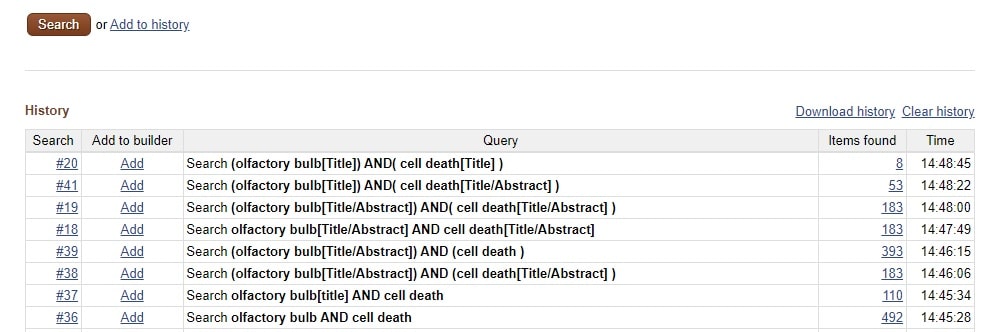
You can also use it to limit search results to articles in a specific language or published within a certain year or date range, to further improve your PubMed searches. Using the previous example we can see how this refines the search.
|
Search terms |
# Articles |
| olfactory bulb AND cell death |
492 |
| (olfactory bulb[Title/Abstract]) AND (cell death) |
393 |
| (olfactory bulb[Title/Abstract]) AND (cell death[Title/Abstract]) |
183 |
| olfactory bulb[Title] AND cell death[Title/Abstract] |
53 |
| olfactory bulb[Title] AND cell death[Title] |
8 |
The use of the field name in square brackets here indicated the field that the search term before it was limited to. This isn’t just used here for convenience, as you can use this method to limit search terms to fields in the standard search box, rather than opening the Advanced Search Builder. There are also PubMed field shortcodes you can use instead of writing the whole field name (e.g. [TIAB] is equal to [Title/Abstract]).
7. Locate Free Full-Text Papers Only
Want to get only those results that have links to the full text for free? You can use fields to limit your search in this way by adding “free full text [SB]” in your search term.
8. History
The history section is absolutely invaluable for you to keep track of all your current searches. It appears below the Advanced Search Builder and stores all the searches you’ve made that session. It also makes it easier for you to combine searches, since next to each previous search is the ‘ADD’ button, allowing you to add that search string to your current search.
Send To Menu
9. Clipboard
The Clipboard is like a temporary holding bin for your search results. You can send up to 500 items to the clipboard and these can come from multiple searches. The clipboard deduplicates results, meaning that if you send the results of two searches that have overlapping results, duplicates will be removed.
You can only access your clipboard once it contains information (once you’ve actually sent stuff there). It will then appear as an icon in the right-hand discovery menu. The clipboard items disappear when you sign out or close PubMed, so it really is only for short-term storage.
Luckily, from the clipboard you have access to the ‘Send to’ menu, allowing you to send the curated clipboard items along to a more permanent home.
10. File
You can send the results of your search (or your Clipboard) to a file on your local computer. You can save the results in any of the PubMed formats (e.g. summary or abstract).
11. Collections
If you have an NCBI account (you can create one for free) you can save any of your search results to a collection. Each collection can hold a maximum of 1000 entries, and you can have multiple collections, named as you see fit. This is a great alternative to saving files on your computer and allows you to access results from different locations easily.
12. Citation
You can download a file of the citations of the search results in MEDLINE (tagged) format, allowing you to quickly and easily add them to reference manager software such as EndNote.
13. E-mail
This one is pretty obvious: you just e-mail the results to a designated address. Quick and dirty.
14. My Bibliography
This is similar to collections, but unlike collections, you can add citations manually (such as those not indexed in PubMed). Useful if you want to keep a bibliography in the cloud.
Discovery Menu
15. Details
The History and Search Details box in the Advanced Search menu lets you see exactly how PubMed is performing your search. For example, your relatively simple search for “olfactory bulb AND (cell death OR apoptosis) NOT development AND olfactory bulb/physiology” actually translates into PubMed as:
(“olfactory bulb”[MeSH Terms] OR (“olfactory”[All Fields] AND “bulb”[All Fields]) OR “olfactory bulb”[All Fields]) AND ((“cell death”[MeSH Terms] OR (“cell”[All Fields] AND “death”[All Fields]) OR “cell death”[All Fields]) OR (“apoptosis”[MeSH Terms] OR “apoptosis”[All Fields])) NOT (“growth and development”[Subheading] OR (“growth”[All Fields] AND “development”[All Fields]) OR “growth and development”[All Fields] OR “development”[All Fields]) AND “olfactory bulb/physiology”[Mesh Terms]
Aren’t you glad you don’t have to type all of that? It’s always good to look at this information if you have any questions about the particulars of your search, or if you get results that are either too narrow or even too broad – you can always refine the search and run it again.
16. Related Articles
Once you’ve selected an article and are looking at the abstract in PubMed, you may have noticed a list of articles entitled “Similar articles” to the right of the abstract. These are articles that the powers-that-be at NCBI/PubMed have determined to be most similar to the article you’re currently looking at, and they’re displayed in ranked order from most to least relevant.
This list is created using a word-weighted algorithm based on words from the title, abstract, and MeSH terms. This related articles feature can be very useful when you’re exploring a new topic, and it can be a lot of fun to start exploring what’s essentially a trail of breadcrumbs, but be careful you don’t get lost while you’re looking and forget where you started!
17. Related Information
Here’s yet another indispensable feature to help improve your PubMed searches. Many of the articles you’ll pull up in your searches also have links not just to the full text of that article (again, based on institutional subscriptions) but also to many of the bioinformatics/molecular biology databases and resources created by NCBI, such as Entrez Gene, HomoloGene, GEO Profiles, PubChem Substance, and many more.
That way you can jump immediately from the article to the hardcore data associated with that article – and once again save a lot of time by not having to search for the data in all of the individual NCBI databases.
The shortcut to all of this information is simply displayed under “Related Information”, which is found to the far right on any PubMed results page. Note that the type of information available varies by article.
Search Results
18. Format
In brief, above the search results there a few options that allow you to choose how you want your results to be displayed. The default display is Summary, which lists basic information about the article. If you would also like to see the abstracts without having to click on the actual link (useful for printing/email), select ‘Abstract’.
You can also view as XML, MEDLINE, or just get a list of the PubMed IDs for the search results. Play around with the options to see what works best for you.
19. Sort By
If you have a huge results list but are looking for a specific article within that list, the ‘Sort By’ feature under the ‘Display options’ tab allows you to arrange the results by Publication Date, First Author, Last Author, or Journal Title. It also has the option of searching for ‘Best Match’.
The PubMed ‘Best Match’ feature uses an algorithm that utilizes machine learning and previous users’ search data to determine which articles are most relevant to you.
Search Support
20. My NCBI
My NCBI is a central place to customize all of the NCBI services. You can use it to save the results of your searches and to set up e-mail alerts to let you know when new articles are published on your topics of interest. You need to register for this service – I recommend you do so, at least to sign up for the automatic alerts. That way you’ll always be aware of new results in your field, particularly from journals that you might not check on a regular basis.
21. Tutorials
Finally, the last tip to improve your PubMed searches. The tutorials page is the place to go if you have any questions or need more in-depth information about PubMed, MeSH, or any of the features I’ve mentioned here. There are lots of tutorials to discover, so happy searching – and get back to the bench!
New PubMed
The above information on how to improve your PubMed searches has been updated to reflect changes in PubMed searches over the years. There is now a shiny new PubMed, which was launched in September 2019 and become the default in May 2020. This article still relates to the legacy version of PubMed, but check out our helpful article on the new PubMed.
Do you have any tips on how to improve your PubMed searches? Drop us a line in the comments.
For more tips on keeping track of the scientific literature, head over to the Bitesize Bio Managing the Scientific Literature Hub.
Many thanks to Melissa Ratajeski, MLIS, RLAT, for her help preparing this article. Thanks also to Tom for his comment highlighting the comparison table for old and new features, allowing us to easily update this article.
Originally published 5 March 2008. Updated and revised 21 January 2020. Updated February 2021.
You made it to the end—nice work! If you’re the kind of scientist who likes figuring things out without wasting half a day on trial and error, you’ll love our newsletter. Get 3 quick reads a week, packed with hard-won lab wisdom. Join FREE here.